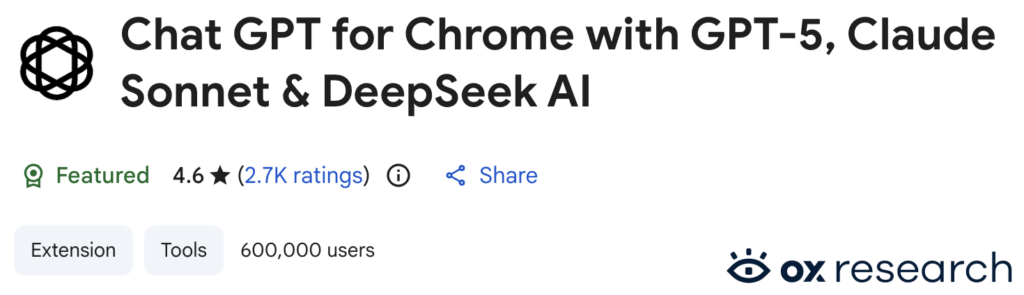
Back in December 2025, the Ox Research team uncovered two malicious extensions that were being actively downloaded (and still available on the Chrome Store at time of writing) by impersonating as the legitimate AITOPIA AI Sidebar. Once installed and permissions granted these extensions were found to steal browser and AI Chat data and sending the data to a remote C2 Server. You can read about how the research team found out what the malicious extensions were doing in thier excellent article – OX Security – ChatGPT Stealer Blog
In this blog post I am going to focus on threat hunting queries you can perform on your security tools and what detections you can build out based on the IOC’s seen by the OX Security research team as well some best practices for your organisation that will help protect you against this type of attack.
Threat Hunting
Based on the IOC’s laid out by the OX Threat Research Team, you can perform the below queries in Defender using KQL to see if your organization may have had a machine get compromised and make call outs to the C2 Servers. If your do not use Defender as your EDR solution, then the theory is the same, you are looking to create a query that looks for activity from inside your organisation to the remote C2 servers.
Hunt 1 – C2 Callbacks
DeviceNetworkEvents
| where RemoteUrl matches regex "deepaichat|chatsaigpt"
The above KQL is very simple, it looks at the network events from your endpoints, this will help you identify any requests made by your endpoints to the C2 servers. If any activity has been seen, you should perform further investigations and remediations.
Now of course, KQL searches in Defender are only good for 30 days, if you want to search further back and you are outputting your Defender telemetry to an external tooling like a SIEM, then you can perform queries on there. You can also use your SIEM to see if any other security tooling has seen C2 Callbacks i.e. your firewalls.
raw = "deepaichats" log_source IN ["EDR", "Firewall"]The above is a very basic Google Security Operations query that looks at the entire raw payload against specific log sources. With threat hunting in SIEM tools, I like to start of with fairly broad searches like this as it allow you to identify all data that has been seen by your log sources. If you try and be too specific on the outset, by trying to query specific fields, you may potentially miss some logs. If you did want to perform a more specific query, you can run one like below:
metadata.log_type = "FIREWALL" AND target.url = /deepaichats|chatsaigpt/Hunt 2 – Extension ID (Initial Compromise)
This next hunt tries to look for the initial compromise, if you know your endpoints have been communicating with the C2 servers and you want to hunt for the initial compromise i.e. when the extension was installed on to the endpoint machine, then you can use the below queries (one in Defender for Endpoint and one in Google Security Operations) to look for the initial installation.
DeviceFileEvents
| where DeviceName contains "NameofDevice" and ActionType == "FileCreated" and FileName matches regex "fnmihdojmnkclgjpcoonokmkhjpjechg|inhcgfpbfdjbjogdfjbclgolkmhnooop"
raw = "fnmihdojmnkclgjpcoonokmkhjpjechg" log_source IN ["EndPoint"]Detections
Detection 1 – C2 Callback Connections
You can create your detection in either your EDR tool or your SIEM, you can do both, but you’ll likely just end up doubling the amount of work. My preference is to always create the detection at the source but if you use your SIEM as the central alerting pane for your SOC, then its perfectly acceptable to create the detection at the SIEM level.
To create a NRT (Near Real Time) rule in Defender for Endpoint for C2 connections, simply use the KQL we used in Hunt 1 and Hunt 2 above. We can also create a rule in SIEM, now, you should already have a pre-existing rule that triggers when any network activity is seen to malicious IOC’s that are contained in some for of “reference list” or IOC feed, so simply add in the two C2 domains into that list if its not already in there. However, if you would like to create a specific rule for this activity in a SIEM like Google Security Operation then you can use the YARA rule below.
rule ChatGPT_C2_Callback {

  meta:
    author = "Joe Bloggs"
    description = "Triggers when activity is seen going to the ChatGPT Stealer C2 Domains"
    severity = "High"

  events:
    $targeturl.metadata.log_type = "YOUR_FIREWALL_PARSER_TYPE" //input the log types you want to detect here i.e. your EDR solution and/or your firewall solution.
    $targeturl.target.url = /deepaichats|chatsaigpt/ //regex that looks for these domain names in the URL field

  condition:
    $targeturl //will trigger when the all targeturl variabled are met
}
Best Practices
Some simple measures to protect your organisation, I am dividing these into two categories, reactive and proactive measures.
Reactive – If you find your organisation has been hit by one of these extensions or any other extensions, perform the following remediation tasks:
- Isolate machines: Any devices that have been found to be communicating with the C2 servers and immediately remove the extension from the devices. For safe measure, I would highly recommend re-imaging the machine.
- Block C2 Domains: Immediately put in a rule to block these domains identified at your Firewall and in your EDR solution.
- Terminate Sessions and Reset Passwords: Immediately terminate all existing sessions of compromised users and rest the users AD passwords.
- User Investigation: A thorough investigation on any users who installed the extension, this specifically is around what sites the user visited whilst the extension was running, consider any passwords inputted during this time to be compromised and immediately reset them and ensure where 2FS is available, they are enabled.
Proactive – Below is a list of measures that I believe will help your organisation stay protected against these types of attacks:
- Block Browser Extensions: Ensure you have a browser extension management strategy in place, whether that’s allowlisting or blocklisting the installation of extensions. Allowlisting is the preferred option as blocklisting will require constant overhead and is less likely to prevent dodgy extensions being installed. There are various tool out there to help your organisation achieve this goals but if you are a Microsoft shop utilising Intune, you can do this by configuring a Microsoft Edge policy in Intune – Configure Microsoft Edge policy settings in Microsoft Intune
- Block Google Chrome via App Control: The browser extension strategy should be part of your overall browser strategy, if you are able to in your organisation, consider not using Google Chrome at all, especially if you utilise Microsoft Intune, its one less app to manage, one less attack vector and unless your organisation has a specific reason to use Google then most users will be fine to use Microsoft Edge. To block Google Chrome, you can utilise Microsoft’s Applocker or another application control tool of your choice. If your users in your organisation do need Google Chrome, then consider only making it available for business reasons on a case by case basis.
- Block Google Sign-Ins: If users in your organisation need to use Google Chrome, then consider blocking personal Gmail accounts to sign in. Specifically, the threat comes from when users have account syncing turned on (more specifically extension syncing), which means your organisation, if it is not blocking browser extensions, could end up installing extension that were downloaded on your users personal machines without them or you realising.